BitLife PC – How to Play BitLife on Windows & Mac
BitLife PC gives you an easy way to experience the popular life simulation game on a larger screen. Instead of playing only on a phone, you can enjoy BitLife on a Windows PC or a compatible Mac with more screen space, comfortable navigation, and a better setup for longer sessions.
BitLife is a text-based life simulator where your decisions shape your character’s entire life. You can study, choose a career, make money, build relationships, get married, have children, become famous, commit crimes, go to prison, start businesses, or simply make terrible decisions and see what happens.
The good news is that PC availability is no longer something you have to guess about. The current official BitLife listing shows BitLife availability on Windows and support for compatible Apple-silicon Macs. However, the exact installation method depends on your operating system and hardware.
This guide explains how to play BitLife on PC, Windows, and Mac, what you need, how the PC version works, when an emulator may be useful, how to fix common problems, and how to avoid fake BitLife PC downloads.
Quick answer: You can play BitLife on compatible Windows PCs, while compatible Macs can run the iPhone/iPad version through Apple’s supported app ecosystem. If you use an Android emulator instead, download the emulator from its official source and install BitLife through a legitimate app-distribution method.
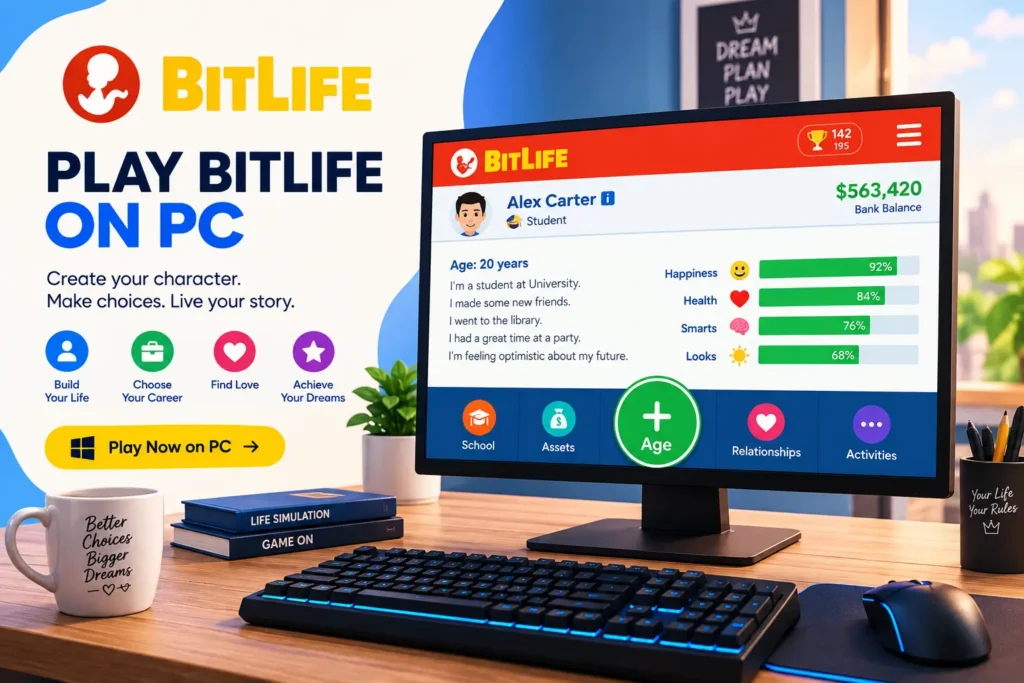
Is BitLife Available on PC?
Yes. BitLife is primarily known as a mobile game, but the current official Google Play listing also identifies Windows availability.
That means you should not automatically assume that every “BitLife PC Download” website offering an EXE file is legitimate. There is an important difference between getting BitLife through a supported distribution method and downloading an unknown installer from a third-party website.
For Windows users, start by checking the current official BitLife listing and the supported installation method available for your system.
For Mac users, the situation is slightly different. The current App Store listing supports BitLife on Mac computers with an Apple M1 chip or later running macOS 14 or newer. Older Intel-based Macs may not have the same native compatibility.
For Mac users, the situation is slightly different. If you are also interested in using BitLife on Apple mobile devices, you can learn more about the BitLife iOS version in our dedicated guide.
How to Play BitLife on Windows PC
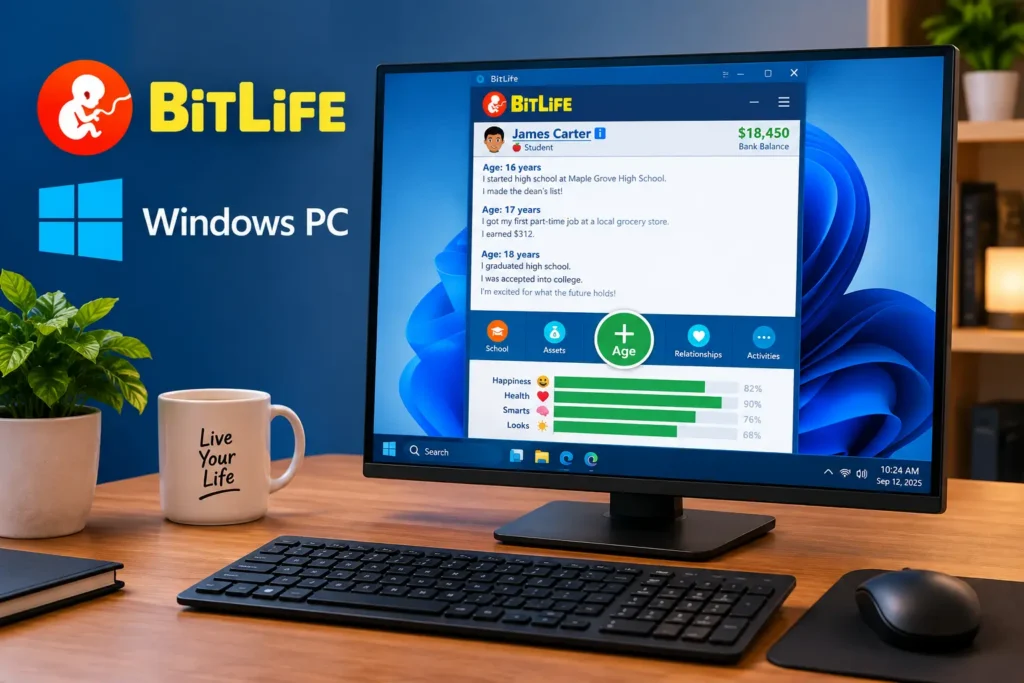
Windows users have several possible ways to run BitLife, depending on the version and distribution method available to them.
The simplest approach is to use a currently supported Windows version of the game when it is available through an official distribution channel.
1: Check Your Windows Version
Before installing BitLife, make sure your PC is running a supported version of Windows and has enough free storage.
Also check your RAM and processor if you are planning to use an emulator.
2: Use a Legitimate BitLife Source
Search for the official BitLife listing rather than downloading an unknown file from a website claiming to provide a “cracked” or “official” BitLife PC installer.
If the download is an executable file, check its publisher and source before opening it.
3: Install BitLife
Follow the installation process provided by the supported distribution platform.
Avoid unnecessary download managers, browser extensions, or additional software bundled with unofficial installers.
4: Launch the Game
Once installation is complete, open BitLife from your Windows applications or desktop shortcut.
The core gameplay remains the same: choose actions, age your character, manage relationships, build a career, and deal with whatever unexpected events appear.
How to Play BitLife on Mac
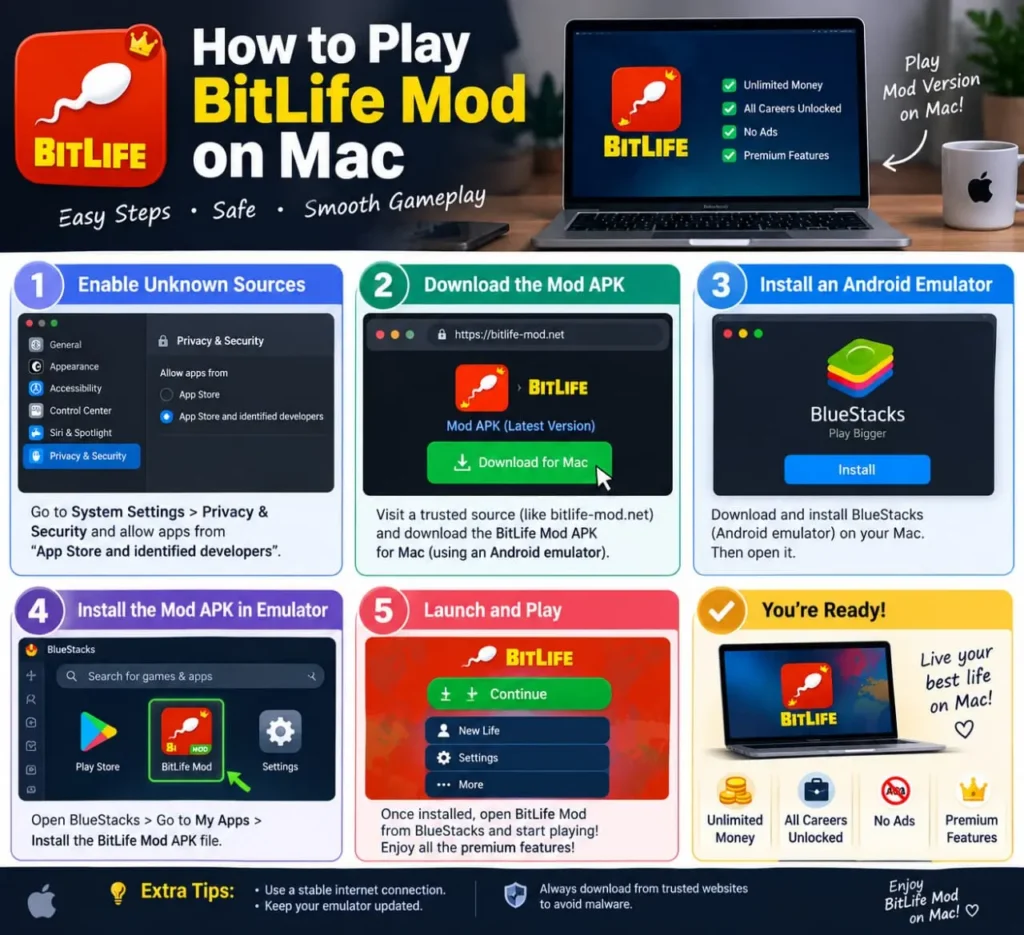
Mac users should check their hardware before choosing an installation method.
The current App Store compatibility information lists BitLife for Mac with an Apple M1 chip or later and macOS 14 or later.
Playing BitLife on an Apple Silicon Mac
If you have an M1, M2, M3, M4, or newer Apple-silicon Mac that meets the supported macOS requirement, check the BitLife listing in the Mac App Store.
The process is straightforward:
- Open the Mac App Store.
- Search for BitLife – Life Simulator.
- Check that your Mac meets the listed compatibility requirements.
- Install the game.
- Launch BitLife from your Applications folder or Launchpad.
This is preferable to downloading a random emulator or unofficial Mac installer when the supported App Store version works on your machine.
What About Intel Macs?
Intel-based Macs should not be assumed to have the same compatibility as Apple-silicon Macs.
If the App Store does not offer the supported version for your Mac, check the current compatibility information before trying a third-party workaround.
Don’t download a random DMG file simply because a website claims it is an “official BitLife Mac version.”
BitLife PC Download: What Should You Actually Download?
The phrase “BitLife PC Download” can be confusing because different websites use it to describe completely different things.
You may encounter:
- An official Windows distribution
- The official mobile game
- An Android emulator
- An APK file
- A third-party installer
- A modified version of BitLife
- An unknown EXE or DMG file
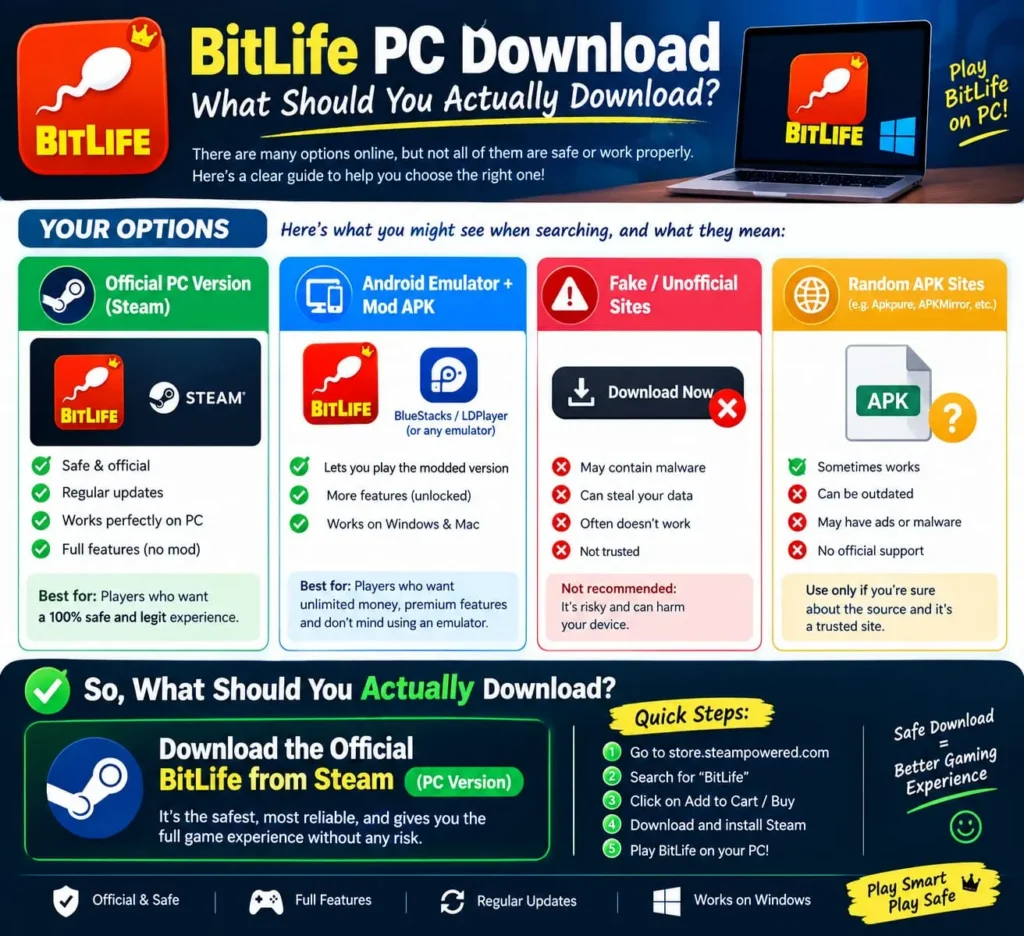
The safest approach
Use the official BitLife distribution available for your operating system whenever possible.
If you need an Android emulator, download the emulator directly from its developer and obtain BitLife through a legitimate app store or supported distribution method.
Avoid fake PC installers
Be especially careful with websites that promise:
- “BitLife PC full version”
- “Unlimited money PC download”
- “BitLife official EXE”
- “BitLife premium unlocked”
- “No emulator required MOD”
- “One-click BitLife PC installer”
A download page using the BitLife name does not automatically mean the file comes from the game’s developer.
BitLife PC Requirements
BitLife itself is not a graphics-heavy game, so you generally don’t need a high-end gaming computer.
However, requirements can change depending on how you run the game.
| Requirement | Practical Recommendation |
| Operating System | Supported Windows or macOS version |
| RAM | 4 GB may work for some setups; 8 GB is preferable |
| Processor | Modern Intel, AMD, or Apple-silicon processor |
| Storage | Keep enough free space for the game and related software |
| Graphics | Integrated graphics can be enough for basic use |
| Internet | Needed for downloads and online-related features |
| Display | 720p or higher is more comfortable for reading |
| Virtualization | Useful when running an Android emulator |
These should be treated as general practical recommendations, not official BitLife system requirements. If you are using an emulator, its own hardware requirements may be higher than the game’s requirements.
Can BitLife Run on a Low-End PC?
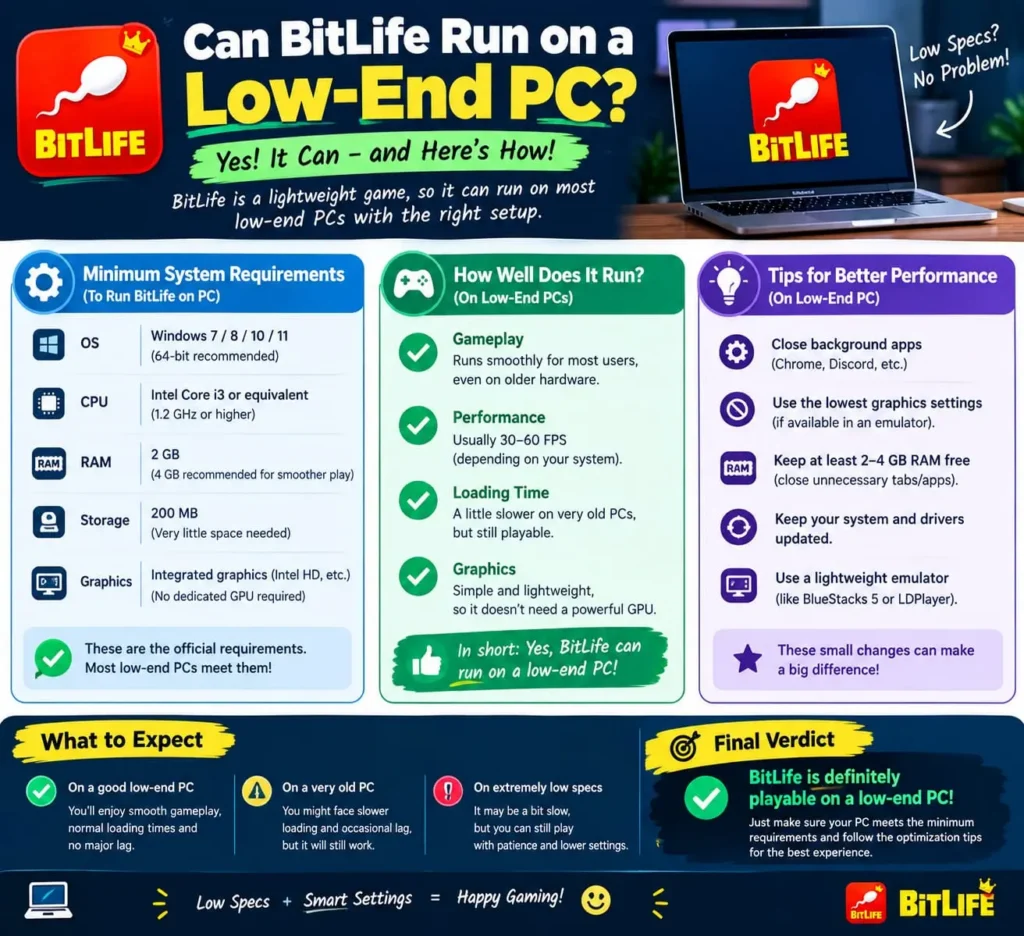
It can, but the answer depends on how you are running it.
BitLife itself is relatively lightweight compared with modern 3D games. An Android emulator, however, can use considerably more CPU and RAM.
If your PC has limited resources, try these adjustments:
- Close unnecessary applications.
- Keep browser tabs to a minimum.
- Avoid running multiple emulator instances.
- Reduce emulator resolution if necessary.
- Don’t allocate all available RAM to the emulator.
- Keep enough free storage available.
- Enable hardware virtualization if your emulator recommends it.
If BitLife works normally but the emulator feels sl
Do You Need an Emulator to Play BitLife on PC?
Not necessarily.
This is an important distinction because many older guides automatically tell users to install an Android emulator.
If your Windows setup supports an official PC distribution of BitLife, you can use that instead of an emulator.
An emulator becomes useful when:
- You specifically want to run the Android version.
- Your preferred distribution method requires Android.
- You want Android-specific features.
- The supported PC version isn’t available for your particular setup.
For most users, there is no reason to install an emulator if a simpler supported PC option already works.
Best Emulators for BitLife
If you specifically want to use the Android version of BitLife on a PC, you can consider established Android emulators.
Two commonly known options are BlueStacks and LDPlayer.
BlueStacks
BlueStacks is one of the most established Android app players for PC and supports features such as keyboard mapping and configurable performance settings.
It can be a good option for beginners who want a familiar interface.
Pros
- Easy-to-use interface
- Keyboard and mouse support
- Multiple configuration options
- Broad Android app compatibility
Cons
- Can consume significant system resources
- Performance depends on your hardware
- Some advanced features are unnecessary for a simple game like BitLife
LDPlayer
LDPlayer is another Android emulator commonly used for running mobile games on Windows.
It focuses heavily on performance controls, key mapping, and gaming-related features.
Pros
- Keyboard mapping
- Performance settings
- Multiple-instance features
- Gaming-focused interface
Cons
- Resource usage varies
- Not every feature is useful for BitLife
- Your PC hardware still determines the overall experience
Which Emulator Is Best for BitLife?
There isn’t a universal winner.
| Feature | BlueStacks | LDPlayer |
| Beginner Friendly | Excellent | Good |
| Keyboard Mapping | Yes | Yes |
| Performance Settings | Yes | Yes |
| Multiple Instances | Yes | Yes |
| Low-End PC | Hardware dependent | Hardware dependent |
| Best For | Simple setup | More customization |
If your only goal is playing BitLife, choose the option that runs comfortably on your PC rather than selecting an emulator simply because it is popular.
How to Install BitLife Through an Android Emulator
If you choose the emulator route, the general process is simple.
Step 1: Download the Emulator
Visit the emulator developer’s official website and download the version that matches your operating system.
Avoid third-party download sites whenever possible.
Step 2: Install the Emulator
Run the installer and follow the setup instructions.
Depending on your PC, the initial installation may take a few minutes.
Step 3: Sign In to the Supported App Store
After setup, open the supported Android app-distribution service inside the emulator and sign in if required.
Step 4: Search for BitLife
Search for BitLife – Life Simulator and verify that the developer is Candywriter, LLC before installing.
Step 5: Install BitLife
Start the installation and wait for it to finish.
Step 6: Launch BitLife
Open the game from the emulator’s home screen.
You can then create a new character and start playing.
Step 7: Configure Controls
For BitLife, you generally don’t need complicated controls.
A mouse is enough for most actions because gameplay revolves around buttons, menus, choices, and text.
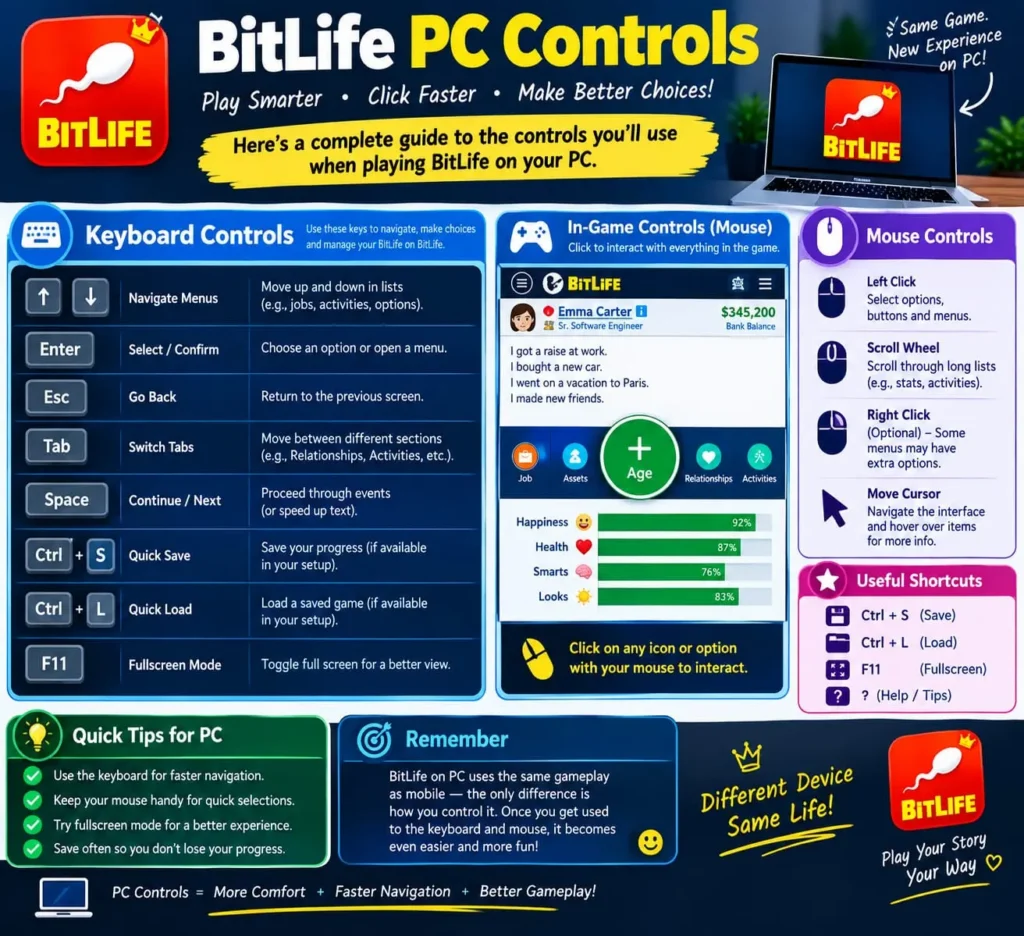
BitLife PC Controls
BitLife is not a traditional action game, so you don’t need a keyboard full of shortcuts.
Most gameplay involves:
- Clicking buttons
- Selecting menus
- Scrolling
- Reading events
- Choosing careers
- Managing relationships
- Checking stats
- Aging your character
A mouse is therefore usually enough.
If your emulator supports key mapp
BitLife PC vs Mobile
The PC version isn’t automatically better than mobile. It mainly changes how you interact with the game.
| Feature | Mobile | PC |
| Screen | Smaller | Larger |
| Controls | Touch | Mouse/keyboard depending on setup |
| Portability | Excellent | Limited |
| Battery | Uses phone battery | Uses PC power |
| Multitasking | More limited | Easier |
| Setup | Very simple | Depends on PC method |
| Long Sessions | Phone dependent | Often more comfortable |
| Hardware | Usually lightweight | Depends on setup |